
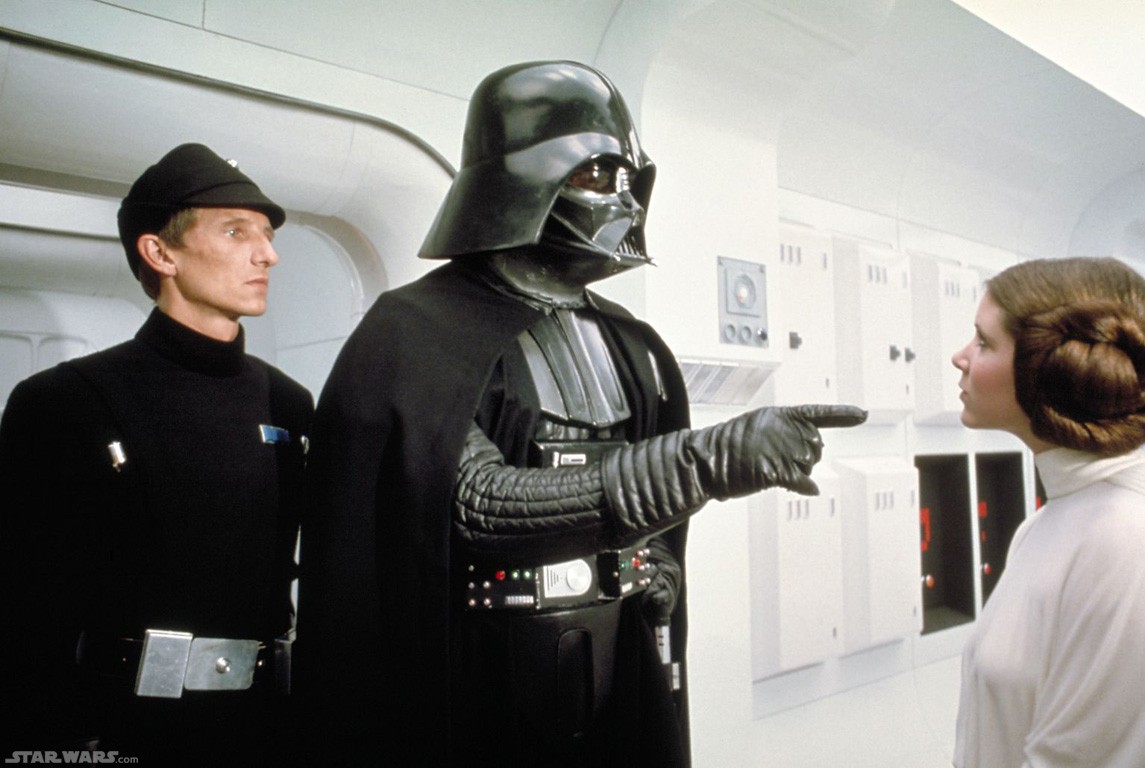
Note: Finding a matching quote for this was a real pain so I settled on this. It has the word location in it...
Wednesday, December 29, 2010
“And now, your highness, we will discuss the location of your hidden rebel base...” Darth Vader (James Earl Jones)
Note: Finding a matching quote for this was a real pain so I settled on this. It has the word location in it...
Tuesday, April 13, 2010
"Outer space is no place for a person of breeding. "Lady Violet Bonham Carter

One of the questions I often get in the lab from people using the Microsoft Word 2007 is what is up with the strange spacing. First what is the problem? In 2007 when you type you will notice everything seems to look double spaced. If you try to force single spacing on what you have typed nothing will change. For many of us we are used to the old system where single spacing was the norm and if we wanted to change it we would. The fix is easy. At the top right on the home ribbon you will see a section called styles. The issue lies in the word normal. Normal is already selected. You would think means single spacing. Instead it is the new style with the strange double spacing feel. The answer is right next to it. Choose no spacing and everything will work like....well.....um....normal. I do this the moment I begin a new word document but you can always highlight text and choose this option as well. Hope this helps.
Wednesday, July 29, 2009
“If you get the dirty end of the stick, sharpen it and turn it into a useful tool” Colin Powell
To begin again…August is coming and teachers are starting to think of the coming year. Students are trying to avoid thinking at all. I know have mentioned this before but I think it needs to be restated. Google, you may have heard of it, is really useful. I recommend trying some of the other free services that Google has to offer. Now I am going to use a teacher slant with this but it could be used for any possible business or project. First off register for a Google service because once you do you will have access to all the rest of the services right away. It is free and quick. Gmail is just the tip of the Googleverse. Gmail is their version of email. One of the reasons I recommend using it is that it is searchable just like Google. This means if a student emails you during the year you can find it fairly easily. Also it does have other abilities like IM (chatting with students built directly into it) or the ability to take all emails from a specific conversation and creating a dialogue out of them instead of scattered emails through out the system. Google calendar allows for sharing of schedules and appointments throughout a group or organization. Also these can be saved to a website to make it viewable to all without registering. Google Docs and Sites are the two most underused by teachers. These together are so easy to use and useful it is unbelievable. Docs is an online Microsoft Office like set of tools. All you do is sign in and you have something that looks like Word, Excel, and PowerPoint. This alone is good but once you think of the ability to share it between others it makes it supreme. It can be viewed or editable by others at the touch of a button. Finally Google Sites is the culmination of all of these. It is creatable webpage that you can use to communicate info with groups of all sorts. As an example lets say a teacher has a book group. They can post all the info about the book they are going to read and then add photos and music from where the book is set. The great thing is that it requires no real HTML ability. If you can use Microsoft Word then you can easily use Sites. Now I know I am being very general about this post but that is what it is supposed to be. I recommend checking all the sites above and see if they fit a use. Give it a try.
Wednesday, March 04, 2009
"Nothing is too small to know, and nothing is too big to attempt." William Van Horne
Here at PPL we are and have been making the dreaded 2007 Office switcheroo. For some it has been a nonissue and for others it has been a real pain. One example is the size of the icons and how small they can be but for others it has been the size of the text in Outlook. In Excel and Word there are easy to find Zoom tools at the bottom right. In Outlook it is there but is several clicks away and there isn’t a default setting for this so it won’t be the same the next time you go to it. One quick fix for this came up while we were trying to fix it. If you hold CTRL and use the scroll wheel on your mouse you can zoom into the text. This is of course assuming you have a scroll wheel on your mouse. You do have one right? If not a new mouse that has one is priced around 10-15 dollars. By using both the button and mouse you can increase or reduce the text quite quickly. This is a lot easier than guessing the zoom percentage. The nice thing is that it seems to work in many programs. Microsoft Word and Internet Explorer both have it. Firefox has it as well but with a nice added feature. After you zoomed in and then go about your business to some other website when you return to that site it will be the zoomed size for that page only. You can go into the view menu of Firefox and then to reset to change it back. Sometimes you never know what little extras you will find until you look for something else. As for the Outlook issue of it being too small and being changed automatically that is a non starter. There does not seem to be anything that will correct that all the time.
Friday, January 16, 2009
“If any man wishes to write a clear style, let him first be clear in his thoughts.” Johann Wolfgang von Goethe
A while back I wrote about a website to download fonts for your projects. After a while I couldn’t find what I was looking for so I started searching around and came across DAfonts. It is a decent site that has over 8000 fonts. I love that they display all of them in a large format. Many font sites have small examples and after you go through all the trouble of downloading and installing, you realize it is not what you were looking for. The site is super simple with just what you need. It has a quickie intro of how to install the fonts and to download them just click the button to the right of any font. Fonts are good for any project. There is a strange common myth that you must install fonts for each program. This thankfully is not true. One you install a font in the system it will be available to any program that can change its writing style. I use many different fonts for Photoshop projects and Microsoft Word sheets. Give it a try and for geek’s sake, stop using comic sans.
Monday, January 05, 2009
“I was probably the only revolutionary referred to as cute.”Abbie Hoffman
I recently had to make a PDF for one of the class worksheets and I thought I would use Vista’s new PDF creator and see how it worked. Unfortunately it was an exercise of frustration and a real nuisance. So I went back to my old alternative CutePDF. Before I go on I should explain that a PDF is document formatted so it can be opened with the free program Adobe Acrobat Reader. Every government file like the 1040 tax form is in that format. It is easy to use and open for everyone who wants to read a PDF. Unfortunately the creation of a PDF can be a bit of a pain. Even though the standard has been around for years, Microsoft has been reluctant to give that ability. So CutePDF is there to bridge the gap. All you need to do is download it from the above link. Once you have gone through the installation process write your document in Microsoft Word and then instead of hitting save go to the print screen. Click at the top where you see your printer listed and choose CutePDF then hit print. It takes a second or two but a little window pops up and asks where you want to save it and under what name. Once done just hit OK and your PDF is created. The nice thing about a PDF is that when you send out something like a resume the setup does not change unlike a word document where it can be subject to their setup. Give it a try.
Tuesday, September 23, 2008
“Don't expect the typewriter to ever completely disappear.” Hal Fair
I have received this question a few times and decided to share it.People using Microsoft Office 2007 have reported that all their buttons have disappeared. This is easy to fix but annoying that you have to do it in the first place. Essentially the person has double clicked on the tabs like home row and others. I do this when it the program is slow or I am not paying attention. All the buttons like bold and font size collapse leaving just the tabs. To bring them back it is just a matter of double clicking on any of the tabs again. I understand why this is here but it just gets in the way. So when you are staring at Microsoft Word wondering what happened give this a try.
Tuesday, June 10, 2008
"I'm now a Doctor of Letters. Most of them Fs and Bs." Billy Connolly
Just a quick shortcut today. Many times I am in the thick of my work and it takes a while for me to notice that I have just typed everything with caps lock on. So now all my words are capitalized. The easy fix is to highlight the problem text and then hold the CTRL and Shift keys and then press the letter A. This will drop it down to lower case. If I do it again it will return to upper case. It is quick and easy so why not give it a try. Tuesday, January 22, 2008
“If you want things to stay as they are, things will have to change” Giuseppe Tomasi di Lampedusa
OK Vista is here and with it comes the 2007 version of Office. To be truthful I am not a happy camper and I am telling some friends to use open source software instead. However the planet uses Microsoft Office products and it will be a while before it migrates to something else. One reason I am not a fan is not because it is an inconvenience to me but rather because I think this does not help new computer users. As an example: I use keyboard shortcuts constantly to speed up my work. If you not familiar with them, an example would be a combination of the CTRL (control key) and the letter B to make something bold. This is fast, easy and I have a handful memorized so I can cruise on quickly through my work. Many new users look at someone who is using these shortcuts as if they have memorized the entire machine when in fact it is written in all of the pull down menus waiting to be learned. The divide between new users and old users is not always too far away when the info is present for both groups. Unfortunately in the 2007 version they took all that away. Below is a quote from Microsoft. If you're still unconvinced and you just want your old shortcuts back, then rest assured: Most of them will still work. However, you'll need to know the full shortcut from memory. There are no on-screen reminders of what keys you need to press.
This means that a new user must look them up somewhere online or grab a book. This is unlikely. Now in defense of 2007 they do have a way to see something like a keyboard shortcut which is using the ALT key. The new shortcuts involve a series of keys rather than a quick combo. To understand more Microsoft has a site devoted to help you learn some of this stuff. A good portion of it is narrated so have speakers on. Give this a try to learn some of the new shortcuts.
As time goes on and my research continues I hope to show some quick fixes for the new system and highlight some of the good points about
Tuesday, November 27, 2007
“I've been doing a lot of abstract painting lately, extremely abstract. No brush, no paint, no canvas, I just think about it.” Stephen Wright
OK I am in Microsoft Word and I just bolded, underlined, italicized a sentence. Also I decided to change the color of the text and add some other formatting changes. Now that is all done I realize I missed a word from the sentence that I did not highlight earlier. Well I could redo all the formatting step by step for that one word or I could use a very simple tool called the format painter. When in Word or Excel I look on the standard toolbar for a small paint brush. Now if you do not see it refer to this earlier post to make the toolbar appear. What I have to do for this situation is highlight the text I changed already. It does not have to be the full sentence just a word will do. Then I click on the Format Painter button which will change my cursor to a little paintbrush. Finally I highlight or click on the words I want to change. I can hold down and drag as well. This will copy the format from one place to another. Anytime I set something up and want to apply it elsewhere I use format painter. Save yourself some time and give this one a try. Wednesday, November 14, 2007
“Genius is the ability to see things invisible, to manipulate things intangible, to paint things that have no features” Joseph Joubert
Many times people come in to the labs here at Providence Public Library and they will ask for help on a resume they had created before. One of the first buttons I press is the Show/Hide button. This usually freaks people out the first time they are seeing it. Essentially it shows all the markers that are normally invisible on a page. The reason this is so helpful is because it lets us in on how and why text is where it is. An example is a page that has a whole bunch of indented information. A person will try to add more info but it keeps moving in an odd way maybe keeping all the spaces. By pressing Show/Hide it shows us an arrow and that means the tab key was pressed here. A little dot represents a space and strange symbol that looks like a top heavy T is a paragraph marker or that the enter key was pressed. Knowing this info allows us to pinpoint the problem and usually erase it. The Show/hide button is on the standard toolbar at the top. However if it is not showing up it could be that the button is hidden. Look at the toolbar and you will probably see in the middle a double arrow. If you are not sure just point to one button after another for its name. The one you are looking for is called toolbar options. Once found click it and then choose show buttons on two rows. This will separate the toolbars so you can see most of the tools. The Show/Hide button should be right next to the percentage of Zoom meaning it will say something like 100%. Finally click the button and see all the markers. To get rid of them click the button again. Give it a try. Wednesday, October 10, 2007
"Mutation: it is the key to our evolution." Professor Xavier founder of the X-Men

I wanted to add to yesterdays post. I posted about changing the format of the document type when you save you r documents. I started wondering if there is another way. What I mean is that I will forget to change the format and do it haphazardly. So there must be a way to make this easier and there is. Open up Word 2007 and go to the save as area. Once there click on the Tools button at the bottom and click on saving options. Once there you can change the preferences for saving all the time. Change from Word Document to saving in Word 97-2003 document. The click OK and from now on it will always do this. I am unsure if I would recommend this a year and half later but for today I want to make my word processing experience easier. Give it a try.
Tuesday, October 09, 2007
“Anything that is unexpected is the X-factor.” Dante Hall

To save or not to save is not really the question when it comes to Microsoft Office 2007. The real question is how should I save? The problem is that the newest version of Office has a new format when it saves. It used to save a resume, lets say, in .DOC format. Now it is automatically saved in .DOCX so that it can use the XML technology. Now I am sure it does add more functionality to your resume, like tags, but the problem is that older versions cannot open up the new format. Meaning, if you send your resume.docx to me and I have a perfectly good version of Office 2002 then I cannot open it. This is causing problems within offices where they have updated some machines and not others. The fix is an easy one. When you save as make sure you change the type to save as Word 97-2003 document. This will make it easy to communicate with
Thursday, August 23, 2007
“We keep moving forward, opening new doors, and doing new things, because we're curious and curiosity keeps leading us down new paths.” Walt Disney

Recently I was asked why when you click on an icon does it open with a specific application and not another? For instance, let’s say that I use Photoshop Elements for editing my photos but every time I click a photo it opens in Microsoft photo Editor. The way many of us might deal with this is go to Photoshop first and open the file that way. However I want to make this easier. Now there are two ways of doing this, one is permanent (not really) and the other is one time. All you do is right click on the file. Now this file does not have to be a photo. It could be anything giving you trouble. Once you right click a menu pops up and you can choose open with and if you want to just try it this way choose a program from the list. However I would like to make this a bit more permanent so I choose choose program from the open with menu. This brings up a lengthy list of every program you have. Choose the application that fits your needs like Photoshop for a photo. Now the semi permanent part, click the box next to Always use the selected program to open this kind of file. This means that when your computer reads that extension at the end of your file, .jpg, .doc, .xls, .wav, .mp3….,it will open with your chosen program every time. I used this not long ago on a friend’s computer to stop all her documents opening in Microsoft Word. Instead it now opens in NeoOffice. Give it a try.
Note: you may have to experiment a few times with different programs to get a file to open. I got a .swf and tried to open it with everything I had and it turned out Firefox was the only thing I had installed that would work.
Friday, August 17, 2007
“Fortunately in my work there's always a choice: I can choose to do it willingly or unwillingly” Ashleigh Brilliant

For the past two days I have written about word processing for Macs so what about the larger percentage of people out there? Is there a good piece of software for word processing? Yes it is called OpenOffice. Below is a list of all that is comes with. Many people and business are turning to it because of two reasons. The price is free and it works. Give it a try.
- Writer – a word processor you can use for anything from writing a quick letter to producing an entire book.
- Calc – a powerful spreadsheet with all the tools you need to calculate, analyze, and present your data in numerical reports or sizzling graphics.
- Impress – the fastest, most powerful way to create effective multimedia presentations.
- Draw – lets you produce everything from simple diagrams to dynamic 3D illustrations.
- Base – lets you manipulate databases seamlessly. Create and modify tables, forms, queries, and reports, all from within OpenOffice.org
- Math – lets you create mathematical equations with a graphic user interface or by directly typing your formulas into the equation editor.
Thursday, August 16, 2007
“It is our choices that show what we truly are, far more than our abilities.” J.K. Rowling

Yesterday I wrote about the Mac software you can buy but what about those who just need a word processor and like the feel of Microsoft Word? NeoOffice is a great alternative choice. Firstly it is easy if you come from Word and second it is free. Most replacement programs, including this one, are very compatible. So if you create a resume in NeoOffice and you send it out anyone with a word processing package should be able to open it. If you would like to give it a try download it here.
Wednesday, August 15, 2007
“Happiness and love are just a choice away.”

As of this week there are some new choices for Mac users who need to do get some work done. Apple has updated and added their office software. Now the question is why do I need another software for office work when you have Microsoft Office for the Mac. In my personal opinion Microsoft made a mistake when they tried to Macify their standard office software. For a user like myself it becomes a pain to get work done because, even though I am using the same software, everything is moved around. So this being said I find it easier to use totally different software then the same that is strangely configured. Now Mac has had their own package of software called iWork. They have reworked much of the word processor, known as Pages, and the same goes for their presentation software, known as Keynote. Keynote became popularized for its use in the movie An Inconvenient Truth. They finally added the missing piece, a spreadsheet program. They call it Numbers. The reason this is exciting is the use of templates that Mac loves to use. It does make it easier and very impressive. The price is also very very competitive. It only cost $79.00 for the package compared to $400 for office. Pay attention PC users I will not be surprised if it ever came to PCs. If you use a Mac you may want to give this a try.
Friday, August 10, 2007
“There are shortcuts to happiness, and dancing is one of them.” Vicki Baum

Are you a better typist than you are a mouser? The more you keep your hands in one place, like the keyboard, the faster you will be. If that is true the more keyboard options you know will speed you up. Now I typically teach about the common keyboard shortcuts like copy and paste and so on but there are far more than you will ever be able to remember. My recommendation find actions you do with the mouse all the time and start looking for keyboard shortcuts, don’t try to memorize them though. Just start using them and it will come with time. For a complete list of the Microsoft Word 2002 keyboard shortcuts click here. Give it a try.
Thursday, August 09, 2007
“You're in pretty good shape for the shape you are in.” Dr. Seuss

The other day I created a word document that contained a picture of a friend. The problem was that I wanted the picture to be saying something and not just have text below. One way is to use speech bubbles that you see in comic strips. After you have inserted a picture into
Word then click on the insert menu and point to picture then choose autoshapes. This will bring up a toolbar. Click on the second from the right, that when pointed to gives the name callouts. Now just go ahead and click on the one you like best. You will notice that your arrow has changed to a plus sign. Point to the center of the screen and hold your finger on the mouse button while you move at a diagonal until you get the size you desire, then let go. Click in the center of it and start typing. All the changes that you can make to your text can be done here like bold or italics. When finished move it close to the picture. You should also see a yellow diamond that you can move to adjust the point of the speech bubble. This is great for Word, PowerPoint, or Publisher. Give it a try.
Note: You may see something that says create your drawing here. Avoid putting your cursor here and it will go away on its own. However if you click in it it will stay and need to be deleted later.
Wednesday, August 08, 2007
“We have not come into the world to be numbered; we have been created for a purpose; for great things: to love and be loved.” Mother Teresa

When I finished yesterdays post I realized I should have written about the format button on the page numbers window. There are lots of great options for page numbering. To begin you can change
the look of the numbers to roman numerals or letters. You can also add chapter numbers and change the styles of the separators. The big option here is the page numbering. Many times I am writing sheets that are a continuation of past sheets. To make the numbers jive I increase the start at and what number I need it to be. Also if you are doing a title page lower the start at page to zero. This means that the title page will begin at zero and progress from there. Give it a try.